Download Ocean Skerry
One small app. Install it, paste your network ID, and your devices can reach each other privately, wherever they are.
Choose your system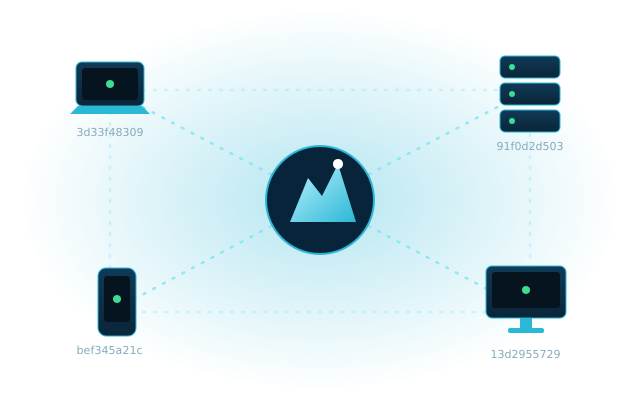
Pick your system
Version 0.1.0. The page highlights the best match for your computer.
Mac
Apple Silicon (M1 and later) · macOS 12+- Open the
.dmgand drag Ocean Skerry into Applications. - First launch: right-click the app → Open → Open. On macOS 15, go to System Settings → Privacy & Security and click Open Anyway.
- Click Enable Ocean Skerry and approve the password prompt (one time).
- Paste your network ID and click Join.
Windows
Windows 10 and 11 · 64-bit- Install the free WireGuard network driver first (needed to create the virtual adapter).
- Run the installer. If SmartScreen appears: More info → Run anyway.
- Open Ocean Skerry, click Enable Ocean Skerry and accept the administrator prompt.
- Paste your network ID and click Join.
Linux server
CentOS · Rocky · Alma · RHEL · Ubuntu · DebianOne command installs everything and joins your network. Run it as root, or with sudo:
- Downloads one small program and verifies its checksum. No packages or repositories needed.
- Starts it as a service that survives reboots.
- Joins the network, then approve the server in the dashboard.
skerry join <id>. Remove with sudo skerry service uninstall && sudo rm /usr/local/bin/skerry.Your device gets its own ID
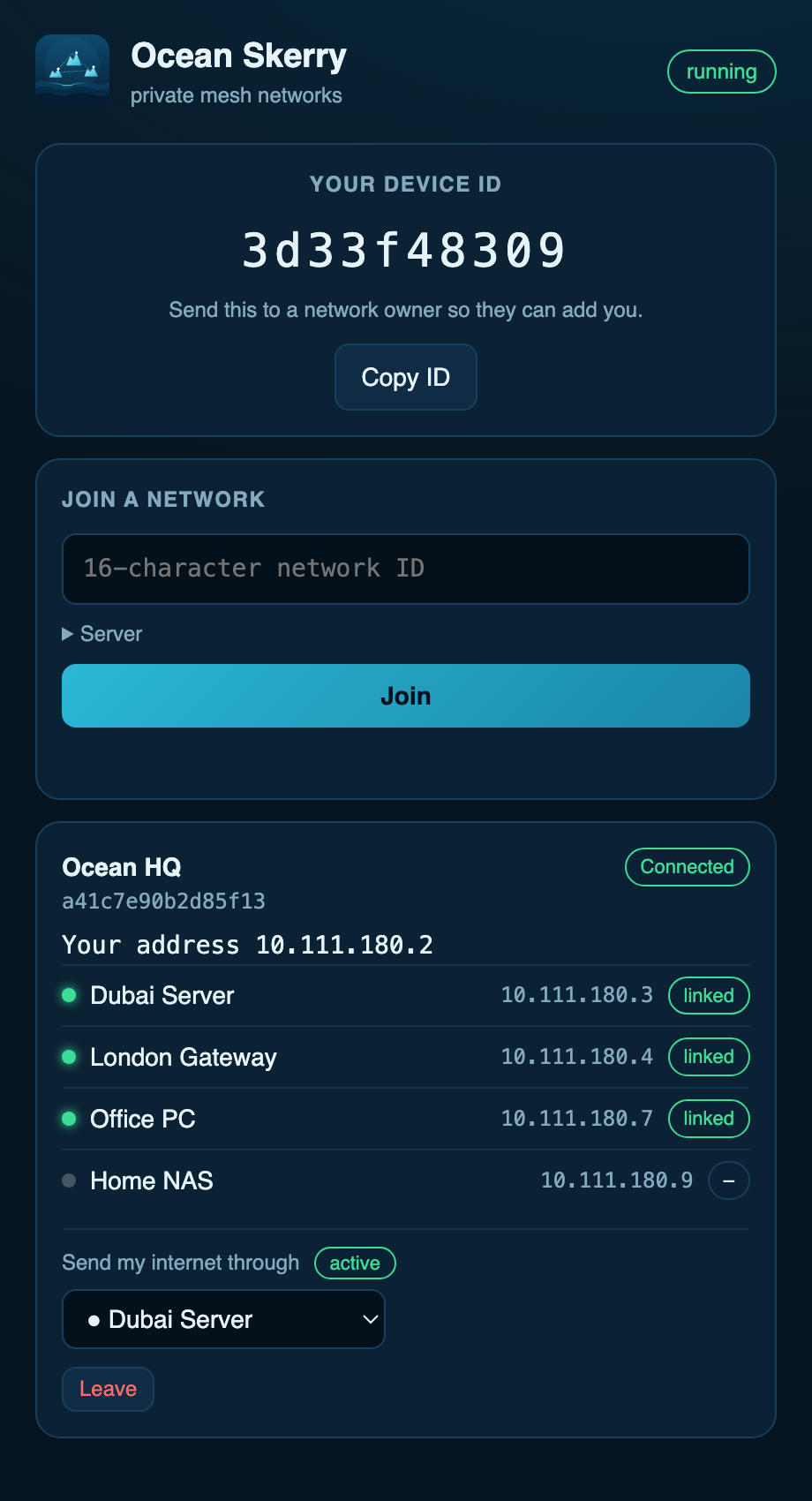
Every device has a permanent 10-character ID, shown right at the top of the app, or by running skerry info. Send it to a network owner and they can add and approve you in advance.
Three steps
Create a network
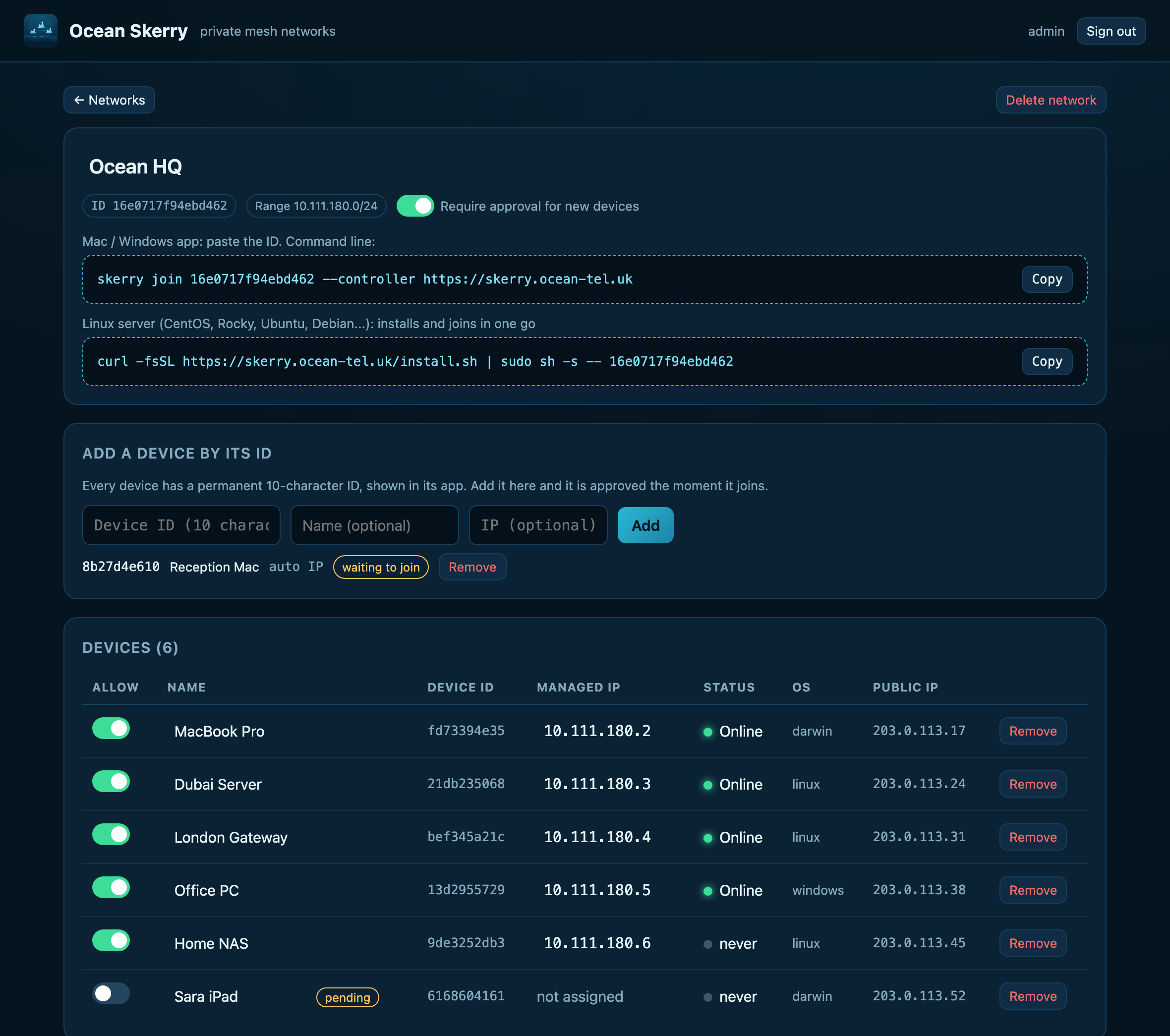
Sign in or create an account, then create a network. It gets its own 16-character ID.
Join your devices
Install on each device, paste the ID. Servers can use the one-line command above.
Approve
Tick Allow in the dashboard. Each device gets a private IP and can reach the others.
Other downloads
Command-line builds and checksums. Verify with shasum -a 256 <file> (Mac) or sha256sum <file> (Linux).
| File | For | SHA-256 |
|---|
Questions
Does my internet traffic go through your servers?
No. Ocean Skerry links your own devices to each other directly with encrypted tunnels. Only the setup (who may join, which IP) goes through the controller.
Will two devices always connect directly?
Direct links work when at least one device has a reachable address (public IP, open port, same network). Early builds have no relay yet, so two devices both behind strict NAT may not link up.
The Mac app says it is damaged
It is not damaged. Early builds aren't notarised by Apple, so macOS blocks them. Run xattr -cr "/Applications/Ocean Skerry.app" in Terminal once, then open the app.
Can I send my internet through another device (like a VPN exit)?
Yes. On a Linux server run sudo skerry exit-node <network-id> on, then the network owner ticks Internet exit next to that server in the dashboard. On a Mac, open the menu-bar icon → your network → Route internet via and pick the server (or skerry use-exit <network-id> <device-id>). Both sides must agree, and "Off" restores your normal internet at any time.
Does it reconnect by itself?
Yes. It starts at boot, reconnects after sleep or a network change, and keeps your tunnels up from its last saved settings even if the dashboard is briefly unreachable.
Where do I find my device ID?
At the top of the app, or run skerry info in a terminal. It never changes for that computer.